
To drop a pin, open any map app, long-press a location, and a marker locks to those GPS coordinates instantly. What that quick action doesn’t solve is what happens next. Most apps treat a dropped pin as temporary. Close the app, start a new route, or switch devices and that pin is gone.
Save Location GPS is built around that gap. This guide covers how to drop a pin on Android or iPhone, how to save and organize multiple pin locations that actually stay put, how to share a full pin map with anyone in a few taps, and how to export your saved locations into files like CSV, PDF, and more whenever you need them offline or on another platform.
Table of Contents
How Do You Drop a Pin on a Mobile Phone?
Every major platform lets you drop a pin, but the steps are slightly different depending on your device. Here’s how it works on Android or iPhone
How to Drop a Pin on Android Without Losing It After You Close?
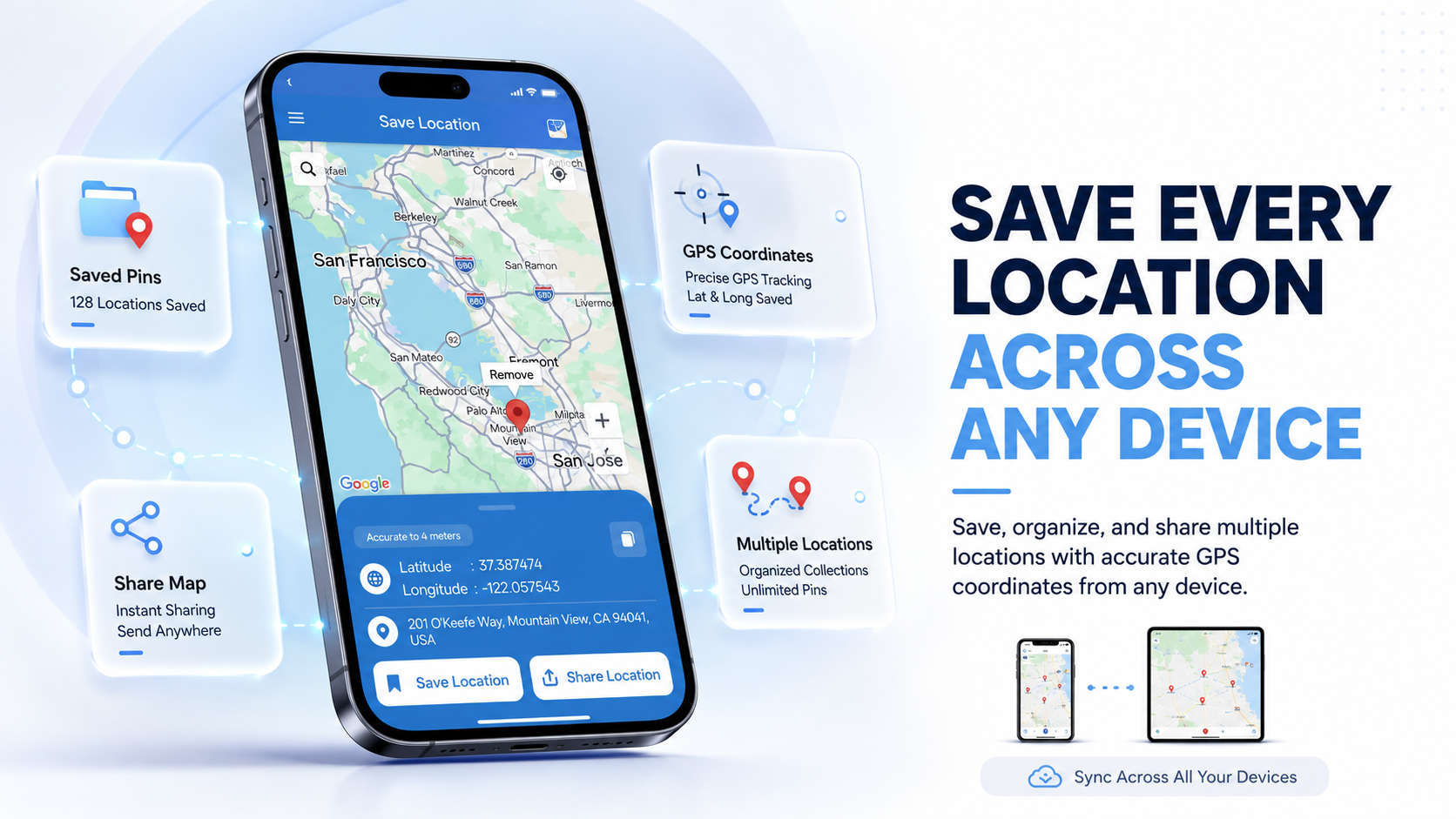
Dropping a pin on Android in Save Location GPS takes about two seconds. Hold your finger on any spot on the map and a red pin appears with the coordinates shown below. You can tap “Save Location” from there to add it to a list like Favorites or Want to Go or “Share Location” to send pin drop to your friends or family
Google Maps wasn’t designed around saving locations. It was designed around navigating to them. Your saved pins live inside a menu most people never find, there’s no way to organize multiple pins into named collections, and exporting anything takes steps that feel intentionally discouraging.
Dropping the pin is easy. Everything after that is where Android’s built-in tools fall apart.
How to Drop a Pin on iPhone and Save It Beyond Apple Maps?
To drop a pin on iPhone, Save Location GPS lets you drop a pin by long-pressing any location. A red pin appears with the coordinates shown below. You can tap “Save Location” from there to add it to a list like Favorites or Want to Go or “Share Location” to send pin drop to your friends or family
The real limitation isn’t the dropping. Apple Maps saves the location fine. What you don’t get is any structure beyond a flat favorites list. No categories, no custom labels, no way to group pins into a trip or a project. Save 40 locations over a few months and you’ll spend more time scrolling than navigating.
How to Save a Pin Drop So It’s There When You Need It?
Dropping a pin is easy. The real problem is that most apps don’t actually keep it. Here’s why pins disappear and how to make sure yours don’t.
Why Most Apps Lose Your Dropped Pin After You Close?
Default map apps treat dropped pins as temporary. They’re built to answer “where am I going right now?” not “where do I need to be in three weeks?” The moment you start a new route, switch apps, or close out, your unsaved pin is gone.
This matters more than most people realize until it happens at the wrong time. Think about the situations where losing a pin actually hurts:
- A property entrance with no proper street address that took you 20 minutes to find
- A campsite accessible only by dirt trail with no signage
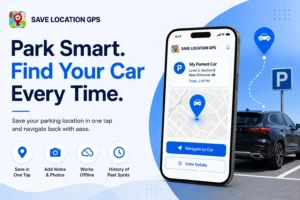
- A parking spot in an unfamiliar city you’ll need again in four hours
- A construction site entrance that doesn’t match what any GPS thinks the address is
Those aren’t recoverable with a quick search. You retrace steps you shouldn’t have to.
How to Save a Drop Pin Location With One Tap?
Save Location GPS is built specifically around this gap. When you drop a pin, you give it a name, a category, and optional notes before saving. It doesn’t go to a generic favorites dump. It goes into an organized library you can search by name, filter by category, or browse by map view.
The save is tied to exact GPS coordinates, not an interpreted address. That matters for locations where the address is vague or wrong. A drop pin location stored as coordinates is always more accurate than one that relies on address lookup at navigation time.
How to Find Your Saved Pin Locations Across Devices?
Log into Save Location GPS on any device and your pins are there. Phone or tablet it doesn’t matter. Your saved locations aren’t locked to the device you saved them on. They’re in your account. Lose your phone, switch to a new one, pick up a tablet: your library is still intact.
How to Create a Pin Map With Multiple Saved Locations?
Building a pin map with multiple stops is something people need constantly. Road trips, delivery runs, client visits, property tours. No default app handles this well from mobile, and that gap is bigger than most people expect before they actually try.
Adding Multiple Pins to a Single Map Without Clutter
In Save Location GPS, you group pins into named maps. A travel trip gets its own map. Work clients go in a separate one. Personal spots like favorite restaurants or hiking access points live somewhere else entirely. Each map only shows the pins you assigned to it.
Here’s what that structure lets you do that a flat pin list doesn’t:
- Pull up just your client locations without your personal spots mixed in
- Share a specific map with a colleague without exposing your other saved places
- Keep a separate travel map per trip instead of one growing pile of saved places
- Archive old maps without losing the data
The organization problem is what most “how to create a map with multiple pins” tutorials skip entirely. Creating the map is easy. Keeping it useful after 30 or 50 locations is the real challenge.
How to Label and Categorize Each Saved Pin Location?
Every pin in Save Location GPS can have a custom name, a category tag, free-text notes and images. “Client Site 3 (use the side entrance)” is a real searchable label, not a nameless coordinate. When you’ve got 50 saved locations and need a specific one fast, that naming structure is the difference between finding it in five seconds and scrolling for two minutes.
Sharing Your Pin Map With Others in a Few Steps
You share a single pin or a full map with one link. The person on the other end doesn’t need the app installed to view it. For teams, this cuts out the back-and-forth about addresses entirely and replaces it with a link that opens directly in whatever map app the recipient already uses.
Save Location GPS lets you download your pins as a CSV, PDF, or other file formats, so your multiple pin drop location data works inside spreadsheets, reports, or any other tool your team already relies on.
When a Pin Drop Works Better Than a Street Address?
Not every place has a street address that works. In those situations, a dropped pin is more accurate, easier to share, and less likely to send someone to the wrong spot.
Locations That Don’t Have a Usable Street Address
A lot of places people actually need to navigate to don’t have a standard address that works. Some common examples:
- Rural properties where the postal address drops you at a road junction 400 meters away
- Trail access points and campsite spots inside larger grounds
- Construction site entrances and warehouse loading docks
- Festival or event spots with no named address at all
A GPS pin drop location solves this cleanly. You mark the exact spot once, and everyone you share it with navigates to that precise point.
How to Share a GPS Pin Instead of Typing Directions?
Most people still share locations by typing an address into a text message. It works often enough that people keep doing it. But typed addresses get autocorrected, misread, or simply don’t exist for the location you’re describing. A shared pin link opens directly in the recipient’s map app with no interpretation, no ambiguity, no “turn left at the blue fence” instructions to write out.
When a Dropped Pin Says More Than Any Address Can?
Think about how often this actually comes up. You’re telling a friend where to meet you at a crowded festival and there’s no real address to give. You’re directing family to your new house before it shows on maps. You’re sending someone to a picnic spot inside a large park where every entrance looks the same from the road. A drop pin location shared as a link is cleaner and more accurate than anything you could type out.
And for people who save a lot of places, having a shared pin map for a group trip beats a notes thread full of addresses that nobody can visualize. Everyone sees the same map, knows where each stop is relative to the others, and can navigate to any pin directly without asking again.
How Businesses Use Pin Maps for Daily Operations?
For teams managing multiple stops, clients, or service locations, a shared pin map replaces a lot of back-and-forth. Here’s how businesses put it to practical use.
Managing Delivery Routes With Multiple Pin Locations
A route with 12 delivery stops is hard to manage from a text list. As a pin map, it’s a visual overview. You can see which stops cluster geographically, adjust the order before anyone gets in a van, and share the final route with every driver at once. When a stop changes, you update the shared map instead of sending corrections through a chain of texts to five different people.
Building a Reliable Map to Work With Saved Destinations
Service businesses with recurring clients benefit the most from saved pin maps. Every repeat address is already saved and labeled. The technician opens the app, finds the client name, and navigates directly. No searching through old emails or texts for the right address. It’s a small thing per visit, but across 200 visits a year it’s not small at all.
Tracking Customer Visits and Field Service Locations
When a team saves and shares locations through one platform, you get a real picture of where work is happening. That’s useful for scheduling, territory planning, and spotting geographic patterns in your client base. It’s not a fleet tracking tool, but for smaller operations it fills a gap that would otherwise require more expensive software.
How Save Location GPS Solves the Drop Pin Problem?
Most map apps treat location saving as an afterthought. Save Location GPS was built around it. Here’s what that difference looks like in actual use.
Save Every Pin With Accurate GPS Coordinates Instantly
Every saved location is stored with full GPS coordinates, not a resolved address. This matters because an address-based save can drift depending on how the map provider interprets the data. A coordinate-based save is always the exact spot you marked. No lookup happening at navigation time that can put you somewhere slightly wrong.
Access All Your Saved Pins From Any Device Anytime
This is the core reason to use a dedicated location app instead of relying on a default map. Here’s what that cross-device access actually means in practice:
- Switch to a new phone and your entire pin library is already there after you log in
- A colleague can access the shared map on their device without you resending anything
- Nothing is lost if you uninstall and reinstall the app
Default apps don’t offer this kind of organized, multi-map library that follows you across devices, and the gap grows larger the more locations you save over time.
Share Individual Pins or Full Maps With One Link
Sharing works the way people actually need it to. One pin for a meeting point, a full collection for a trip itinerary. Both options, one link, works on any device.
Common Pin Drop Problems and How to Fix Them
Even with a good app, a few common issues trip people up. These are the ones that come up most often and exactly what to do about them.
Your Saved Locations Keep Disappearing
If your pins are gone after you close the app, you’re using something that stores them in temporary session memory rather than your account. Other Apps do this with pins you haven’t explicitly saved to a named list. The fix is using an app that treats every save as permanent until you delete it yourself.
Pins Look Right on Screen but Navigate to Wrong Spot
This happens when a saved location is stored as an address rather than coordinates. At navigation time, the app runs a fresh address lookup, which can resolve to a slightly different point than where you originally dropped the pin. Saving by GPS coordinates cuts this out. What you saved is what you navigate to, every time.
Your Shared Pin Link Isn’t Opening for the Other Person
Usually this means the link opened inside an in-app browser rather than their actual map app. The fix is simple: tell them to copy the link and open it in their default browser, or paste it directly into their preferred navigation app. Save Location GPS pins include raw coordinates compatible with any map app, so it’s rarely a compatibility issue.
Start Here Before You Lose Another Location
Most people don’t think about location saving until they’ve lost a pin that actually mattered. A shortcut entrance they found after 20 minutes of circling. A parking spot in an unfamiliar city. A place a friend recommended that had no real address to search later. Default apps aren’t built to hold onto those reliably, and you find that out at exactly the wrong time.
Save Location GPS keeps every pin you drop, organized the way you think, accessible from any device you use. No more retracing steps. No more “I saved it somewhere” moments. Start saving your locations the right way. Download Save Location GPS today.
Frequently Asked Questions
How do I drop a pin and send it to someone else?
Drop a pin in Save Location GPS, tap share, and send the link via text, email, or any messaging app. The recipient taps the link and it opens in their map app. They don’t need Save Location GPS installed.
Can I save multiple pins for free?
Yes, Save Location GPS offers free access to basic pin saving and map creation. Multiple pins with custom labels and cross-device sync are available without a paid plan to get started.
Does Save Location GPS work without mobile internet?
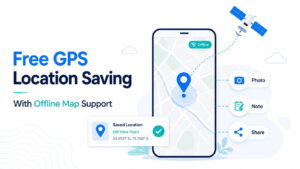
Pins you’ve already saved are accessible offline. Dropping a new pin only needs a GPS signal, which works without mobile data on most devices. Syncing new saves to your account needs a connection, but the GPS capture itself doesn’t.
How accurate is a GPS pin drop today?
On most modern smartphones, consumer GPS is accurate to about 3 to 5 meters in open areas. Dense urban environments or indoor use can drop that to 10 to 20 meters. For marking a job site entrance, sharing a meeting point, or saving a parking spot, that precision is more than enough.
Can I access my saved pin maps on a different device?
Yes. Log into your Save Location GPS account on any device and your full library is there. The sync happens automatically whenever you have a connection.