Introduction
What is Save Location GPS app?
SaveLocation GPS app is app where you can save and share your locations easily. This app is specially designed for people who are traveling and use locations on a daily basis.
How to use Save Location GPS app?
It is really easy to use, you can use this application without logging in. But if you log in your data will be synced. So, if you have lost your phone or is broken. You can log in from another mobile and your all data will come back.
Do this app work offline?
Yes, this app work offline. You can find your current location offline too, but it may take sometime. But, you should also try using it online because you wont be able to share your location offline.
What are other features of Save Location GPS app?
Besides saving and sharing you can also manage your location, view saved location in different views, import and export data, and also change settings accordingly.
Is this app free?
Yes, this app is absolutely free.
Premium Feature Notice
But if you want to import or export your location you will have to do in-app purchase because this premium feature, by this you can download location in other formats.
PREMIUM FEATUREHere is the documentation for you to understand our SaveLocation GPS App. You'll find instructions on how to use functions in this app. So, let's get started and understand how to save, edit, and share your location in the SaveLocation GPS App.
Save Location GPS is available on the Apple Store & Google Play Store. Get Started

Get Started
Installation


Reviews
Damien from Mauritius, 05/26/2020
Close your eyes and download. Have been looking for this for a long time!! Has all the features one could hope for... search gps coordinates by name, export, import, google maps redirect for directions, multiple device syncing & list goes on!! I couldn't stop smiling after I downloaded the app :)
Cory Hoffart, 04/07/2019
Wow. Amazing. This app works better than I hoped it would. I started using it for places to visit but now use it for work as well. The map interventions make it perfect.
Jsong123, 01/02/2022
One of the best if not THE BEST. Compact, powerful GPS location app. Check it out.
A Google User, August 23, 2019
So far, so good after 3 hours using this app. I deliver pizza and I've added numerous GPS locations. I tested one of them and it worked perfectly. What I like about this app is I can pull up "search" by address name or address number. When it pulls it up I can click on the "map" icon and it opens my "Google Go Map" app. Then I just click on the "navigate" button and I'm good to go. This app is super easy to use. I hope you won't change anything. I've seen so many updated apps get ruined. 349 people found this review helpful.
Octavian Cudalbu, November 1, 2021
Exactly what I searched for. Very nice that saved locations can be opened in preferred GPS app. Very useful when leaving car in an unusual location. Invaluable when you need to be met "here", but have no idea where exactly are located. Very useful the possibility to share saved locations. Overall, brilliant, nice job !!! UPDATE: would be very useful to have a comments field for saved positions !!! Thank you ! Bought the application, well invested money :)) 105 people found this review helpful.
T-Rolla St. Dusky, September 15, 2023
A very, very useful "location cataloging" app. Look forward to supporting this app. Cheers and keep it up!! 62 people found this review helpful.
Manage Location
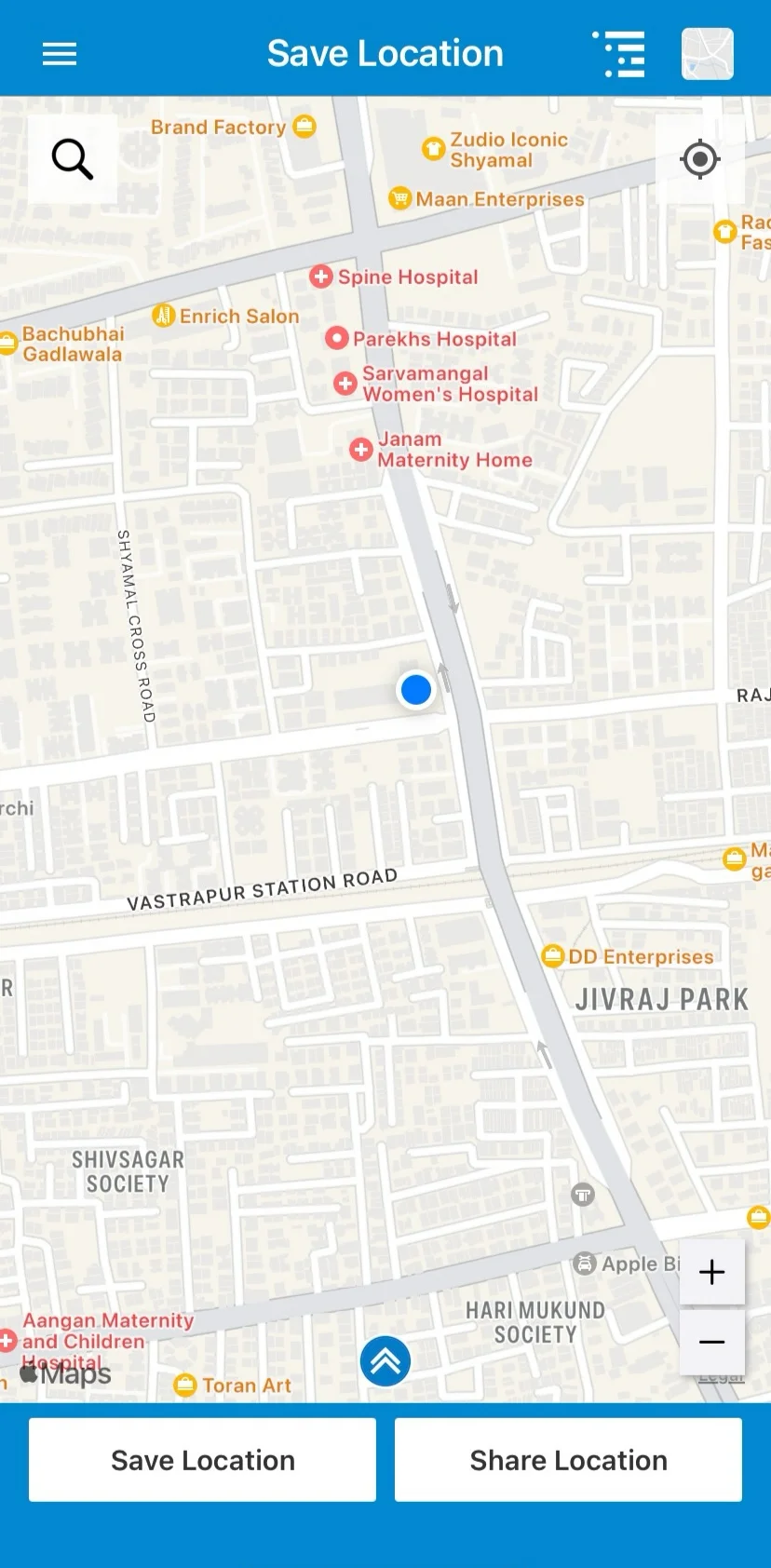
Current Location
To check the current location:
- Open the home screen.
- Click the icon on the right corner to go to your current location.
To improve GPS accuracy
Android: Click here for more information
iOS: Click here for more information
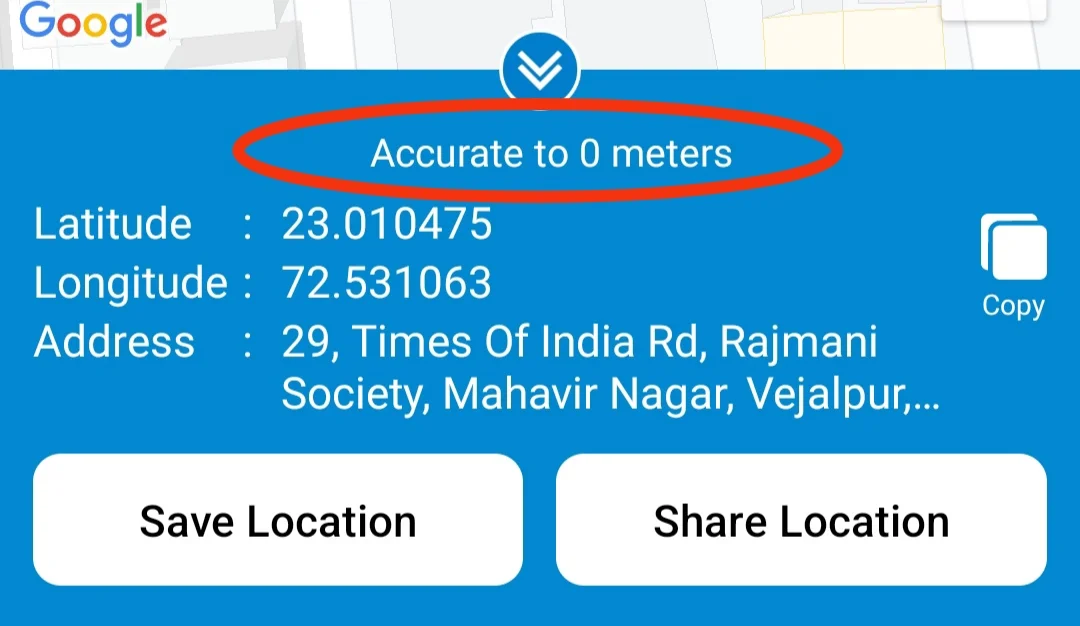
Location Accuracy is displayed as "Accurate to 0 meters" as shown in screenshot below.
To search the location you can click on the icon which is in the left corner.
On the home screen you also can:
- Save Location
- Share Location
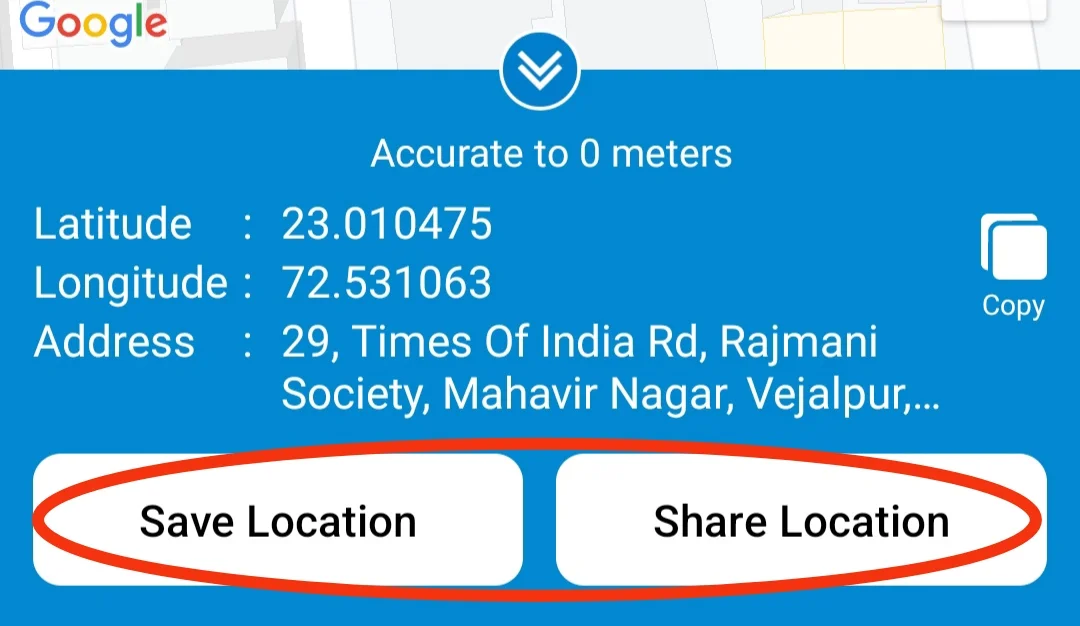
Now let's check how to view saved locations. You can share the location directly by clicking on the share option. To change share location settings you can visit the setting page.
View Saved Location
To view saved locations:
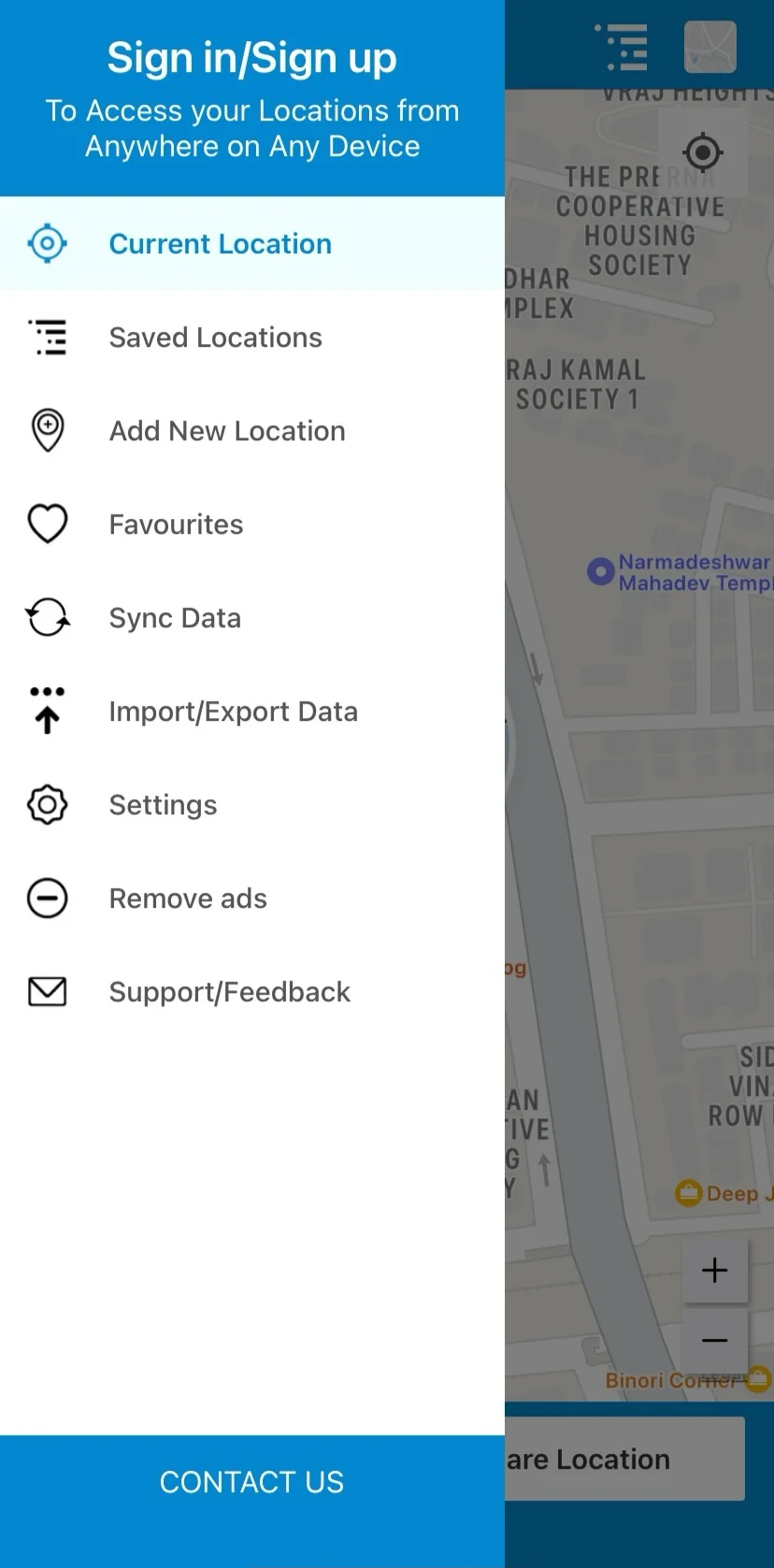
- Open sidebar.
- Click on the "Saved Locations" option.
- Then select the group you want to add your saved location. (By default your saved location will be saved in "All").
- You can also create a group in the plus button shown in the right corner below.
There are two ways you can view saved locations.
1. List View
- Open saved locations.
- Click on All.
- Click on the "List" option on the screen to open List View.
There are some icons you will see in the list view. Let's understand those.
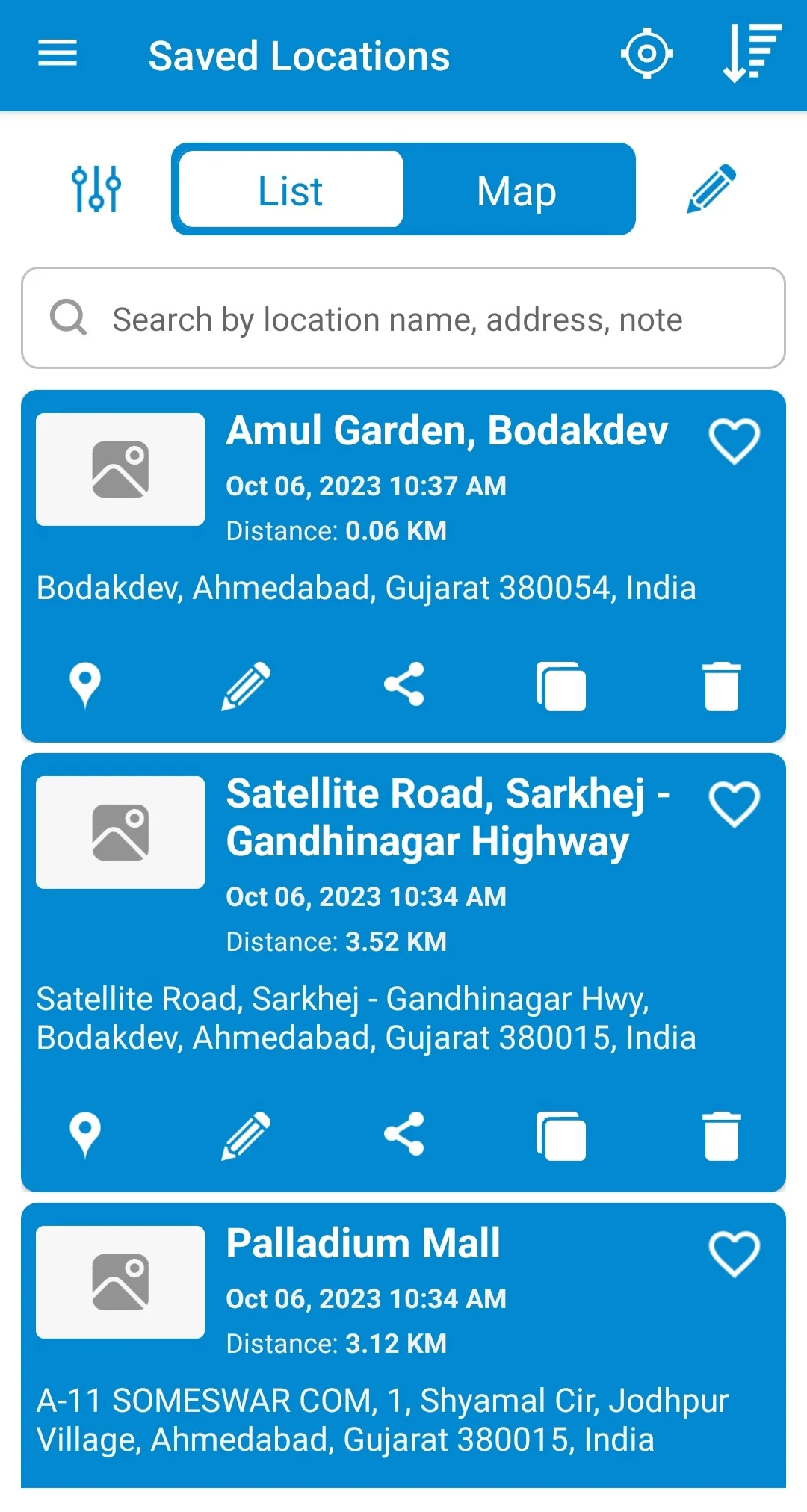
View Location on Map.
Click icon of the location card.
It will take you on maps and open a location card with some details like address, contact, and other things you have added while saving that location.
Edit Location
Click the icon of the location card to edit the respective location details.
It will allow you to edit details like location name, address, and other things.
Share Location
Click the icon of the location card.
When you click on the share location option, You will be able to share your location with anyone. You can also change share preferences. (To change share preferences go to the settings menu.)

Copy Location
Click the icon of the location card.
This option is for copying links and sharing locations separately.
Delete Location
Click the icon of the location card.
This option will delete locations from your saved locations.
Add Location to Favourites
Click the icon of the location card.
This option is for saving location to your favorites.
To check your favorite location.
Open Sidebar and Click on the Favorites option
Delete Multiple Locations
Click the icon on the top right corner of the screen.

This option will let you delete all locations according to your preference.
Sort Saved Locations
Click the icon on the top right corner of the screen to sort locations.
You can set location by date(ascending or descending), distance, and in alphabetical order.
Customize Location Card
Click the icon on the top left corner of the screen.
This option lets you turn customization on and off.
These options will be shown on your location card.
2. Map View
Click the "Map" tab on the screen to open Map View.
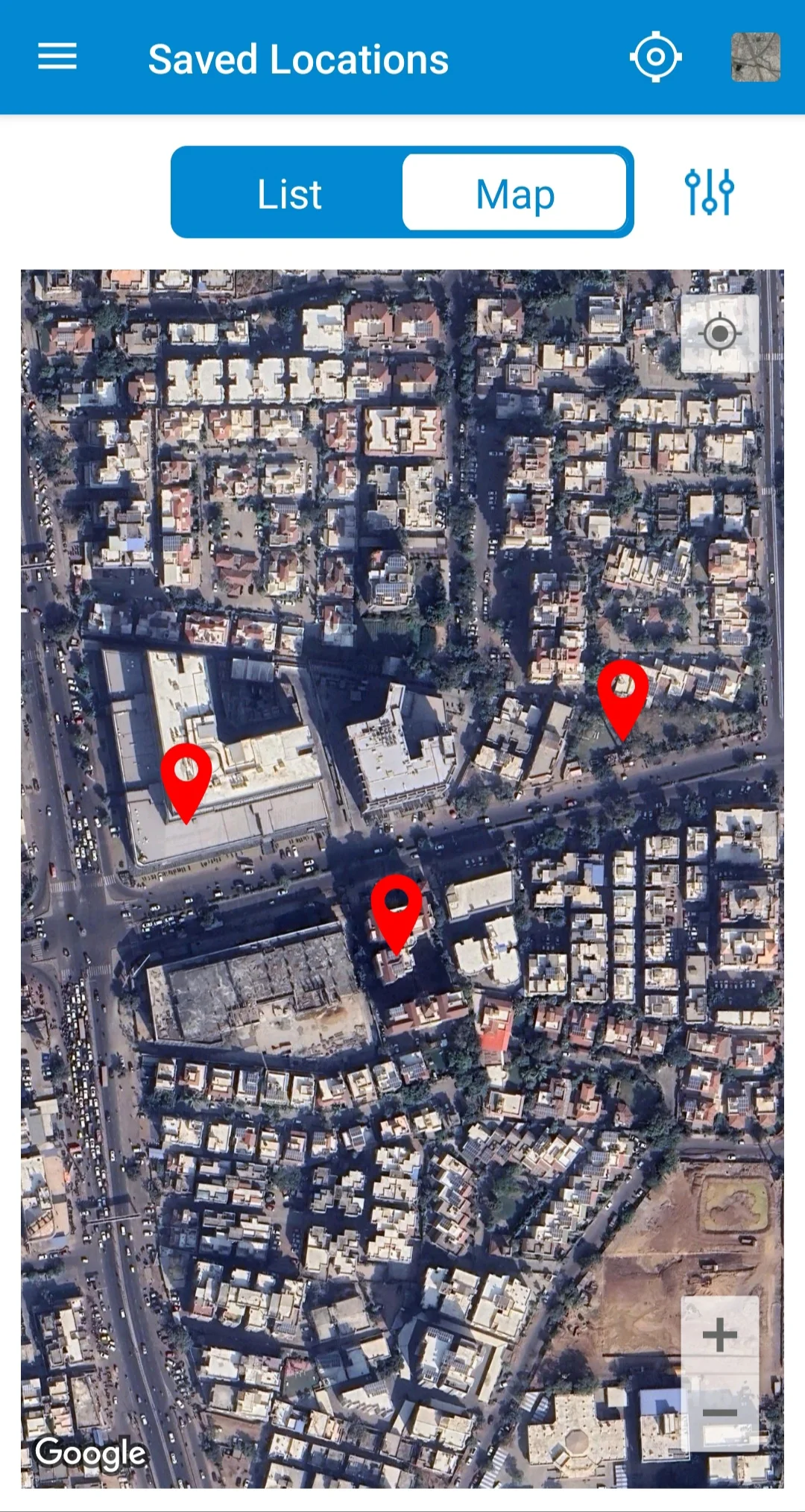
Choose Map Type
Click the "map" icon on the top right corner to select your preferred map type. Our app supports these map types :
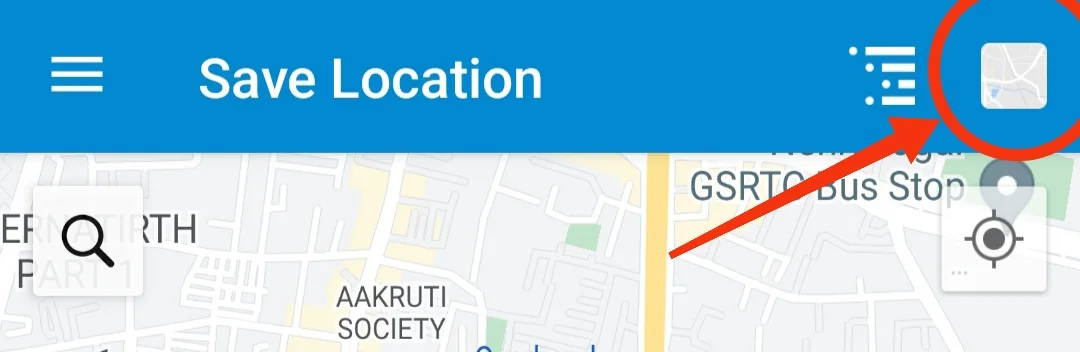
- Roadmap - Roadmap is a primary or normal map that shows location in navigational form, where you can see boundaries and labels. You can also see nearby areas.
- Satellite - Satellite shows an image view of the location. It will show how the area will look from the satellite.
- Hybrid - Hybrid will show you a mixture of normal and satellite views. By choosing this you will get a Satellite view with names of areas.
- Terrain - Terrain will show a view of main locations, unlike the roadmap view.
Grouping Locations
Click on the icon in the top right corner of the screen.
- Set 'Radius' and 'Cluster Markers' options are available in this option.
- You can radius of location according to your preference and enable cluster markers too.
- Cluster Markers show the number of locations you have saved. For eg. If you have saved 3 locations it will show according to if you zoom in and out.
View Location Details
To view location details in Map view:
Click on icon. (It will by default show the last added location.)
View Particular Location On Map
To view particular location details in Map view:
- Click the back button.
- Select the location.
- Click icon.
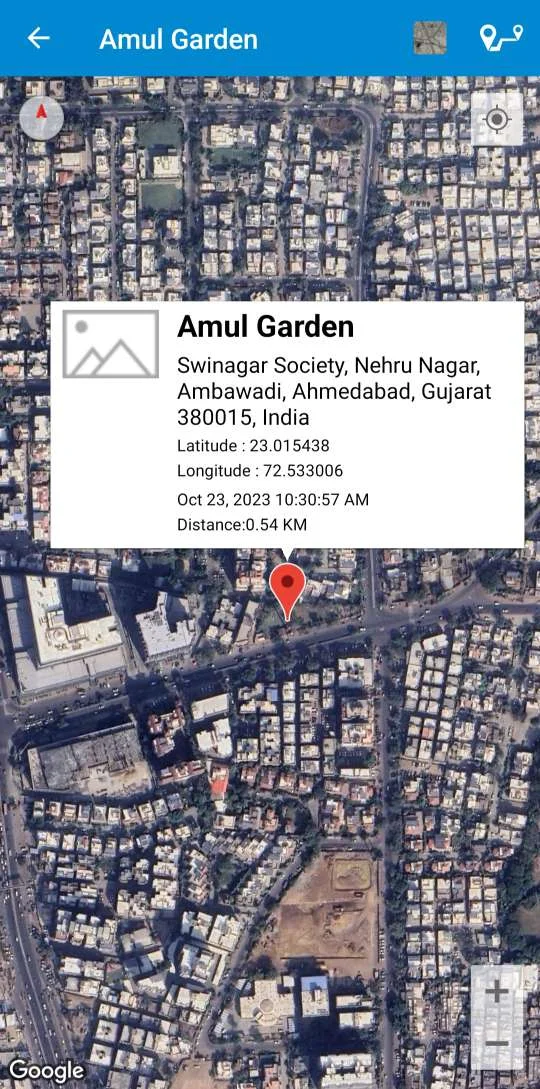
- Now, click on the card of 'location details'.
Check this photo below for reference.
Edit Location
To edit the location in map view:
- Click on the location card.
- It will show you the same card again and then directly open the edit menu.
Add New Location
For adding new location:
- Open sidebar.
- Click on the "Add New Location" option.
Settings
Settings
To make changes in the application
- Open sidebar.
- Click the "Settings" tab.
When you open that tab you will be able to see the following options for customization. There is an explanation of each setting in detail.
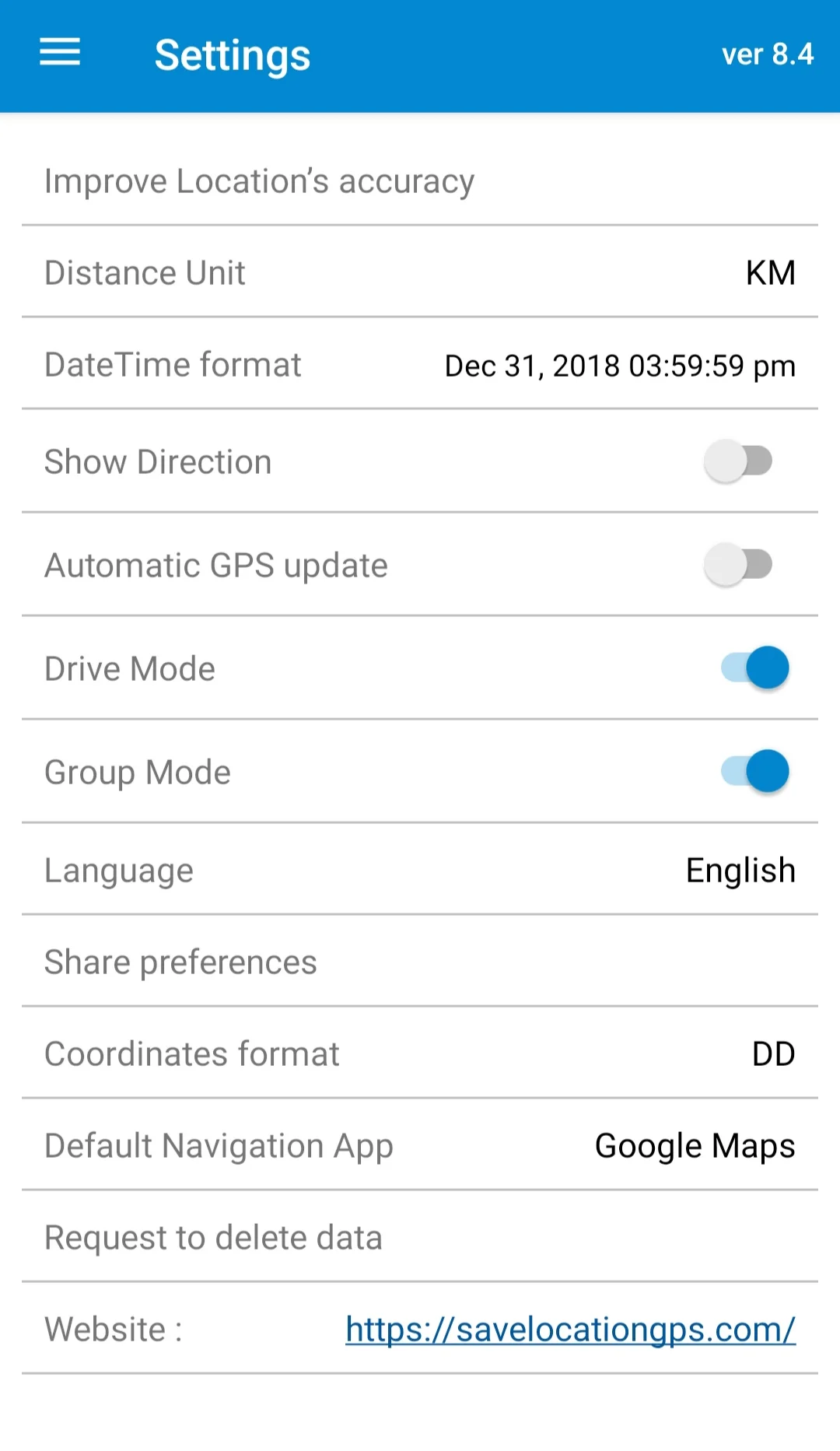
Improve Location's Accuracy
This option is used to improve the accuracy of location in the application. Click on the option and this will lead to guidelines by Google. You can check them and follow them. Video is also available for guidelines on the same page.
Note - This option is not available in IOS
Distance Unit
This helps to measure the distance you have covered.
These units are supported in our app :
- Kilometre
- Mile
Date and Time Format
You can select a date and time in a format according to your choice.
Supported formats :
- yyyy-mm-dd hh:mm:ss
- dd-mm-yyyy hh:mm:ss
- [month day, yyyy] hh:mm:ss
- yyyy-mm-dd hh:mm:ss am/pm
- dd-mm-yyyy hh:mm:ss am/pm
- [month day, yyyy] hh:mm:ss am/pm
Show Direction
It helps you to see directions on a map. You can enable or disable it.
Automatic GPS Update
Automatic GPS update automatically updates your location on the map. You can turn it On and Off. If it is On, your location will be updated automatically if you close your app and open it again. If it is Off, your location will not be updated. You will have to press the "My Location" icon on the map to go to your current location.
Drive Mode
Drive Mode saves location with one tap when you are driving. It also has two options ON and Off. If it is turned off you will be allowed to add some details in it like location name, contact, note, and group. You can also add images if you want. If it is turned on your location will be saved directly in the All in saved locations option.
Group Mode
In Group Mode you can arrange your locations as per your choice. If the group mode is turned Off and you save the location, you will be shown the option to make a new group or add a location in "All". When group mode is turned On your location will directly be saved in "All".
How to use group mode?
Click on group mode while saving location, and you will be able to select group. You can add a location in the group of your choice and make another group. By default, all locations will be shown in the "All" option. You can also choose a color for your group.
You can open saved locations to check the group of the locations and other locations too.
Language
Select the preferred language for the application's user interface.
Share Preferences
You can turn on and off share preference. When you will share your locations with someone these below-shown preferences will show if you keep it on and won't show if you keep it off.
Supported preferences :
- Latitude
- Longitude
- Location Name
- Address
- Contact Number
- Note
- Date
- Google Maps URL
- Waze URL (waze app link, app similar to Google Maps)
- Save Location ( saves link of location)
Coordinate Format
The coordinate format shows longitude and latitude on maps. These are supported formats.
- Decimal Degrees (DD) - It shows longitude and latitude on maps in decimal degrees.
- Degrees Minutes Seconds (DMS) - It is the oldest format for maps. It is shown as degree, minutes, and second. for eg. if the coordinates of the Eiffel Tower are 48°51'30.24″N, 2°17'40.2″E. You can read it as 48 degrees, 51 minutes, 30.24 seconds north and 2 degrees, 17 minutes, and 40.2 east.
- Degrees Decimal Minutes (DDM) - DDM format is space between each line of latitude and longitude in 60 minutes. and also dividing them into decimals.
- Universal Transverse Mercator (UTM) - The UTM system divides Earth into 60 zones with 6 degrees wide latitude. The zone numbers are from 1 to 60 and are shown from the Pacific Ocean which moves on the east side.
Default Navigation App
Supported navigation apps :
- Google Maps
- Apple Maps (available in iOS)
- Waze Maps (works only if the Waze app is installed on your phone)
Request to Delete Data
You can send a request to delete your synced data via email.
Premium Features
Premium Features
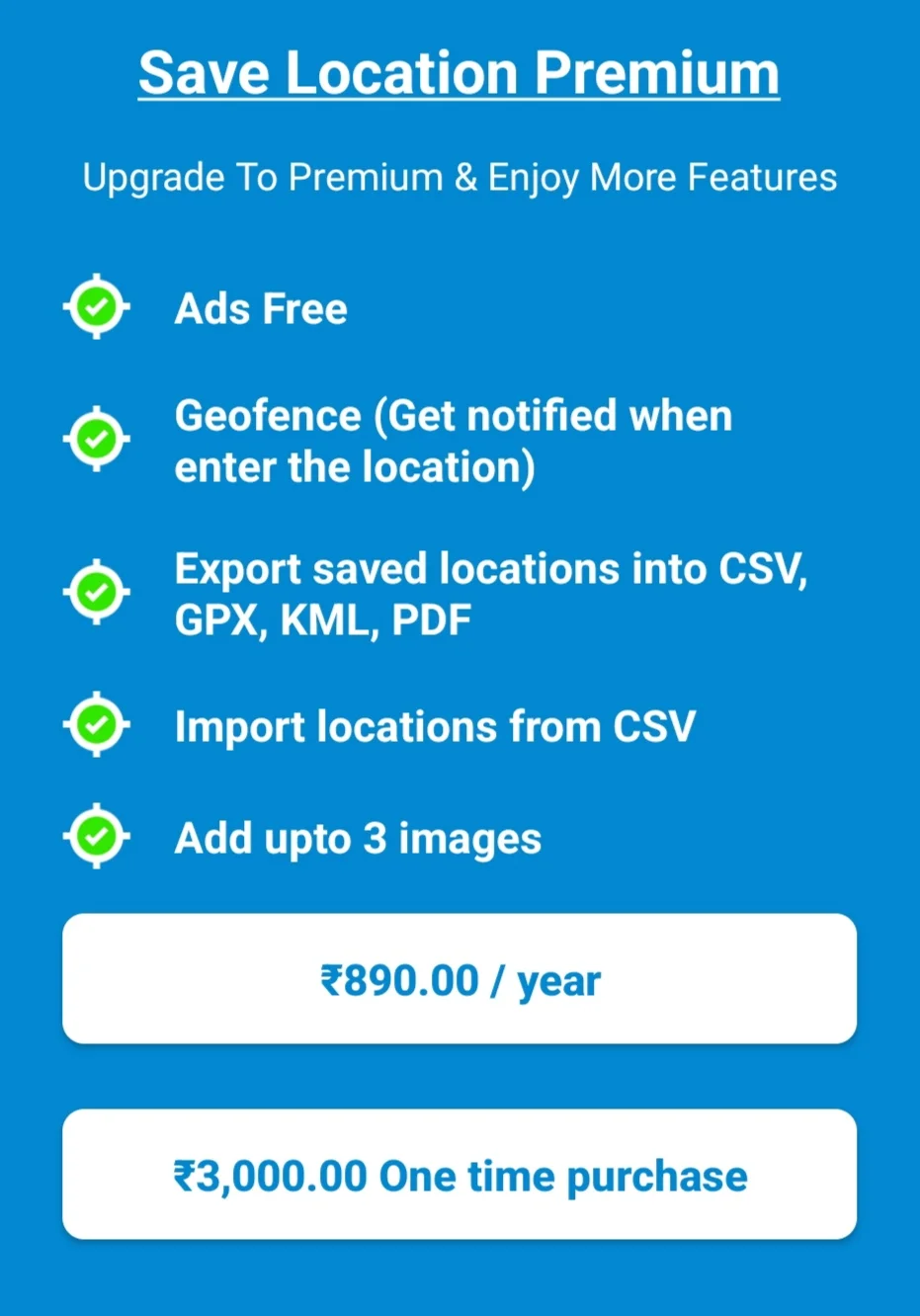
These are things you can get if you upgrade to Premium:
- No Ads
- You can export saved location data in CSV, GPX, KML, and PDF format
- Import locations in CSV format
- Add up to 3 images
- Geofence (Get notified when enter the location)
Upgrade To Premium
To upgrade to premium:
- Open the Sidebar.
- Click the "Remove ads" option.
Data Control
Export Data
Premium Feature Notice
This is a Premium Feature.
PREMIUM FEATURE- Open sidebar.
- Click the "Import/Export data" tab.
You can export files in these formats :
- .csv - .csv is a comma-separated values file which saves data in tabular format. You can open these files in MS Excel or Google Spreadsheets.
- .pdf - .pdf is a portable document format that saves your exported file in document form.
- .GPX - A GPX file is also known as a GPS exchange format file. It is a text file where your exported document will have geographic information like waypoints, tracks, and routes. You can open this file by emailing it to someone or by Google Drive.
- .kml - .kml is a keyhole markup language that allows your exported file to display data in Earth browser. You can open this file in the computer software Google Earth.
- .image - .image exports your file in image form where you can open it in the form of JPEG and PNG format.
Import Data
Premium Feature Notice
This is a Premium Feature.
PREMIUM FEATURE- Open sidebar.
- Click the "Import/Export data" option.
You can import files in these formats :
- .csv - .csv is a comma-separated values file which saves data in tabular format. You can open these files in MS Excel or Google Spreadsheets.
Manage Account
Login / Register
For Login/Register click on the sidebar and you will see the login option on the upper side. Click on it. You can sign your Google Account, Facebook Account, Email Account, and Phone.
If you log in your data will be synced automatically so if you have lost your phone or is broken you will have to log in from another device. Your data will be stored in cloud storage so when you log in again your saved locations will automatically come back.
Logout
For logging out:
- Open sidebar.
- Click the "Logout" option below in the sidebar.
To sync data:
- Open the sidebar.
- Click the "Sync Data" option.
Your data will be synced directly after clicking on it. You will be able to sync data only if you have logged in.
FAQs
What is the use of the Save Location GPS app?
The SaveLocation GPS software allows you to save and share your locations easily. This software is created for people who travel frequently and make use of locations on a daily basis.
Is the application free?
Yes, this application is absolutely free to use.
Save Location GPS application is available on which platforms?
This app is available on both IOS and Android devices.
Do I need an active internet connection to make the app work?
No, you don't need an internet connection to make this app work. However, to go directly to the current location you will have to use it online. While using offline you will have to click on the icon at the right corner.
Do I need to create an account to use the app?
No, there is no need to create an account for using the app. But if you create an account you can sync your data. You can log in with Google, email, Facebook account, and phone.
How to use the data collected/saved in the app?
Premium Feature Notice
You can import and export saved data in the app. You can import saved data in .csv format. You can export saved data in .csv, .pdf, .image, .gpx, and .kml formats. As this is a premium feature you can import and export data after purchasing.
PREMIUM FEATUREI have some issues in using the app. How do I get support?
For any queries and questions, you can contact us here.