
The best app to remember where you parked is Save Location GPS. If you’ve ever searched “find my parked car“ after leaving a busy shopping centre, airport, stadium, or office complex, you’re not alone. A reliable car parking app can save your exact location in seconds and help you get back to your vehicle without wasting time.
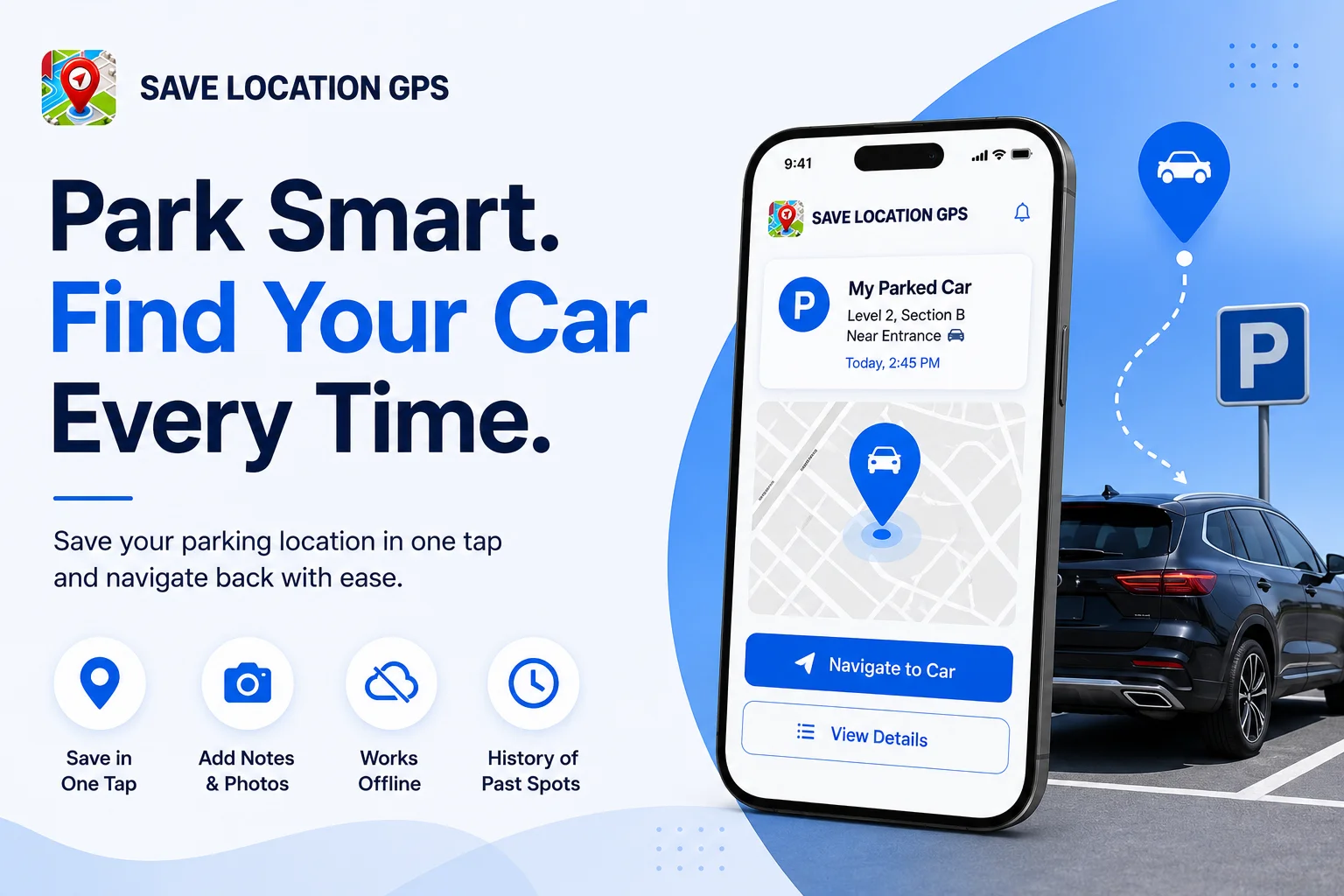
Save Location GPS is built for this job. It lets you save your parking location, add notes and photos, and return to your vehicle using your preferred navigation app. Whether you park on a city street, in a shopping mall, or inside a large parking garage, the app keeps your parking spot organised and easy to find.
Why You Keep Forgetting Where You Parked?
You pull into a spot, grab your bag, lock the car, and walk away. The whole thing takes maybe ten seconds. Your brain has already moved on to whatever you’re late for. Parking lots make this worse on purpose, or at least it feels that way. Same grey asphalt, same painted lines, same rows stretching in every direction with no real landmarks to tell them apart. It’s not a memory problem. It’s a design problem.
The moment you park is also, usually, when your mental load is at its peak. You’re thinking about the errand, the meeting, the kid you need to pick up. There’s no spare attention left to log “Row C-5, third pillar from the left”. A real chunk of it is people trying to find a car they already parked somewhere and can’t locate anymore.
A mental note doesn’t cut it. “Blue section, near the escalator, I think” fades in about fifteen minutes. A dedicated GPS app doesn’t forget.
What a Good GPS Parking App Should Do?
Not every app that claims to save your parking spot is actually good at it. There’s a gap between a navigation app that handles parking as a side feature and an app that was built specifically for this problem. Before you download anything, here’s what the good ones actually do.
Save Your Spot in One Tap, Not Five Steps
Speed is the whole thing here. If saving your parking location takes more than a few seconds, most people won’t bother. You tell yourself you’ll remember. You won’t.
Google Maps does technically let you mark where you parked. But the process goes like this: open the app, tap your blue dot, find “Set as parking location” in the menu, wait for GPS to catch up, then hope you remember to check it later. That’s five steps when you’re rushing and your arms are full. Most people skip it entirely. A real GPS parking location app does this in one tap while you’re still standing next to your car.
Work Offline When the Signal Drops
This one matters more than people think, and it’s where most built-in map tools quietly fail.
Underground garages, covered multi-level structures, airport parking buildings: these are all GPS dead zones. If your parking app needs a data connection to confirm and save a location, it fails exactly when you need it most. A parked car app with no internet needed saves the pin locally to your device. Five bars or zero, the save still works. You need an app that stores the location on your phone, not one that hands it off to a server before it’s locked in.
Let You Add Notes and Photos to the Spot
Here’s the thing GPS alone can’t tell you: what floor you’re on, which color section, or that your car is three spots left of the pillar with the yellow stripe. GPS coordinates are precise. They’re not descriptive.
Photos fix this. When you walk out of a store two hours later, you don’t read an address. You recognize a visual. A quick shot of the nearest level sign takes three seconds. The text note below it, “Level 3, Blue Zone, near the service elevator,” does the rest. Together they’re worth more than any satellite pin.
Keep a History of Past Parking Locations
If you park in the same places regularly, a history log pays off fast. You’ve been to that stadium before. You know the lot, you just don’t remember the exact row from last time. An app that keeps a record of past spots means you’re not guessing from scratch every single visit.
Here’s what to look for when comparing apps on this feature:
| Feature | Why It Matters |
| Searchable history | Find a past spot by name or date without scrolling |
| Location grouping | Organize spots by city, venue, or trip |
| Editable past entries | Fix a label or add a note after the fact |
| No auto-deletion | Some apps wipe old spots after 48 hours |
Most built-in map tools auto-delete your parking pin once you start driving again. Dedicated apps don’t.
Save Location GPS: Best App for Parking Your Car
There are plenty of find my parked car apps out there. Most of them do one thing okay. Save Location GPS does the whole job well, which is rarer than it sounds.
How Save Location GPS Works for Parking
When you park, open the app and tap once. It saves your exact GPS coordinates, the street address, latitude and longitude, and a timestamp. Everything is stored on your phone. No signal needed.
Features That Actually Help You Find Your Car
What makes this stand out as a GPS parking location app isn’t just that it saves your spot. It’s what you can do with that saved spot.
- Custom title:
You name the spot. “Parking” tells you nothing. “Level 2, Blue Zone, near the Target entrance, north side” is what you can actually use when you’re walking out 90 minutes later. - Photo attachment:
Snap a shot of your surroundings before you walk away. You’ll recognize the visual faster than you’ll process any text when you’re tired and ready to leave. - Location grouping:
Park in the same city or venue often? Group those spots so they’re easy to pull up in your saved list without scrolling through everything else. - Navigation handoff:
When you’re ready to go, the app passes your saved pin to whichever map app you prefer, Google Maps, Waze, or Apple Maps, and gives you walking or driving directions directly to your car. - Location sharing:
Someone picking you up? Send them your exact pin. Skips the back-and-forth phone calls about which entrance you’re near. - Cross-device sync:
Log in on any iPhone and your saved spots come with you.
Works in Garages, Lots, and Street Parking
Open street parking is the easy case. GPS locks in accurately, walking directions are reliable, and you’re back at your car in under a minute. Paid open-air lots work the same way.
Covered garages are a different story, and any app that pretends otherwise is overselling it. GPS weakens fast inside concrete structures. But Save Location GPS handles this with the notes and photo combo: save the pin near the entrance where you still have signal, add a floor and section note, take a photo of the nearest level sign. Your spot is documented even if the GPS pin isn’t exact. Your saved data is also encrypted on your device and isn’t shared with anyone.
Google Maps vs. Save Location GPS
Google Maps is a great app. Finding your parked car is not what it was built for, and that’s fine. It just means you shouldn’t expect it to do this job well.
| Functions | Google Maps | Save Location GPS |
| One-tap save | No (multi-step) | Yes |
| Works offline | Unreliable | Yes, fully |
| Photo save | No | Yes |
| Custom label | No | Yes |
| Parking history | No | Yes |
| Android auto-detect | No | Manual tap, always works |
| Saved spot expiry | ~48 hours | Never (unless you delete) |
The pin Google Maps drops disappears after about 48 hours, or sooner when you start driving again. There’s no photo, no custom label, no history. It works fine for a quick one-off in a familiar lot. But if you park in new places, travel for work, or deal with covered garages regularly, a dedicated app to save parking spot handles this in ways Google Maps simply doesn’t.
The honest take: Google Maps was built to get you somewhere. Save Location GPS was built to help you get back. Those aren’t the same problem.
When GPS Alone Isn’t Enough: Multi-Level Garages
Most “how can I find my car” articles don’t get into this, so let’s be straight about it.
GPS is good. Inside a concrete parking garage, it gets shaky. Satellite signals don’t pass cleanly through steel and concrete, and your phone’s reported location can drift anywhere from 20 to 50 meters from where you’re actually standing. A pin that puts you “somewhere on Level 4” isn’t much help when you parked on Level 5.
The fix takes about 20 extra seconds and works every time:
- Save the pin before you go inside:
Pull up the app when you’re still at the garage entrance or ramp, where your GPS has a clear signal. Tap save. The coordinates lock in accurately at that point. - Add a text note immediately:
Write down the floor number, the section color or letter, and the nearest landmark. “Level 5, Green Section, near the stairwell by the elevator bank” is specific enough to walk straight to. - Take a photo of the level sign:
That yellow sign on the pillar with “P5 / Green” is more useful than anything else when you’re walking back through a garage that looks exactly the same on every floor.
Save Location GPS was built with this workflow in mind. Field crews use it to tag equipment in partially covered industrial sites. The same note-plus-photo approach transfers directly to multi-level parking, and it’s more reliable than hoping GPS does all the work for you.
5 Tips to Never Lose Your Car Again
These habits work with any parking app. They work especially well with Save Location GPS because the features are right there when you need them.
- Save the pin while you’re still next to the car:
Every step you take away lets your GPS drift a little further from your actual spot. Tap save before you even lock the door. Ten extra seconds now, zero confusion later. - Take a photo every time you’re somewhere new:
Under stress, you recognize a visual faster than you read a saved address. A shot of the sign or pillar next to your car takes three seconds and is worth more than any text note when you’re tired and the lot looks identical in every direction. - Label with real details, not just “Parking.”:
Nobody has ever found their car because they saved a spot called “Parking.” “Level 2, near Target entrance, north side” is what you’ll actually use when you’re walking out 90 minutes later trying to remember which direction you came from. - Fix your location permissions once, then forget about it:
If your app is set to “Ask each time,” you’ll skip it when you’re in a hurry, which is every time. Set location access to “Always” or “While using the app.” That’s a 30-second settings change you only do once. - Share the pin when your outing will be long:
Phone battery dies at 4pm, your car is in an unfamiliar spot, and you’ve got no way to pull up the app. Sharing the saved location with someone else before you go in takes five seconds and gets you home if something goes wrong.
The Real Cost of Forgetting Where You Parked
Twenty minutes wandering a parking structure isn’t just annoying. It’s money. Metered spots tick while you walk. Airport and event lots charge by the partial hour. And if someone’s waiting on you, the cost isn’t in the wallet, it’s in the conversation you’ll have on the way home.
Getting the habit right takes about 15 seconds: open Save Location GPS, tap save, add a label, take a photo if it’s a new spot. You don’t think about the car again until you’re ready to leave.
If you’re someone who drives to new places often, deals with large lots or covered garages, or just wants a free parking spot saver app that doesn’t need a data connection to work, Save Location GPS does the job. The 15 seconds you spend when you park is the difference between walking straight to your car and pressing the key fob into the concrete ceiling hoping something beeps back.
FAQs
How do I find my parked car in a big parking lot?
Open Save Location GPS and tap save the moment you step out of your car. The app locks in your GPS coordinates, address, and time. When you’re ready to leave, tap navigate and it walks you straight back. For large open lots where rows all look the same, add a label like “Row D, near the food court entrance” before you walk away.
What should I do if I forgot where I parked and have no app?
Start by retracing your steps to the entrance you used. Most large lots and garages have section letters or color codes on the pillars and look for those first. If you drove in from a specific street, walk back toward that side of the building. Press your key fob every few seconds and listen for the horn. For next time, a free parking spot saver app like Save Location GPS takes one tap and removes the guesswork entirely.
Can I save my parking spot without mobile data?
Yes. Save Location GPS saves your location directly to your phone using the built-in GPS hardware. No mobile data, no Wi-Fi, no server connection needed. The pin saves whether you have full signal or none at all. This makes it one of the few app to save parking spot options that actually works inside covered garages and rural areas where data drops out.
How do I remember which floor I parked on in a garage?
GPS alone won’t reliably tell you the floor because satellite signals weaken inside concrete structures. The practical fix is to add a text note with your floor number and section when you save your spot, then take a photo of the nearest level sign. In Save Location GPS, you can do both in under 15 seconds. The photo is usually all you need when you come back.
Does saving my parking location drain my phone battery?
Not in any meaningful way. Save Location GPS uses your phone’s GPS only for the moment you tap save. It doesn’t run in the background or continuously track your movement. A single location save uses about the same battery as sending a text message. You won’t notice it on your battery percentage.